A practical guide to accurately testing your VPN speed. Learn how to measure download, upload, and latency with various tools.
A practical guide to accurately testing your VPN speed. Learn how to measure download, upload, and latency with various tools.
How to Test Your VPN Speed A Step-by-Step Guide
Understanding VPN Speed The Basics of Performance Measurement
So, you've got yourself a VPN, right? Maybe you're streaming your favorite shows from another country, or perhaps you're just trying to keep your online activities private. Whatever your reason, one thing's for sure: nobody likes a slow internet connection. And sometimes, a VPN can feel like it's putting the brakes on your speed. But how do you really know if your VPN is slowing you down, and by how much? That's where VPN speed testing comes in. It's not just about seeing a number; it's about understanding what those numbers mean for your everyday online life.
When we talk about VPN speed, we're generally looking at three main metrics: download speed, upload speed, and latency (or ping). Think of download speed as how quickly you can pull information from the internet – crucial for streaming, browsing, and downloading files. Upload speed is the opposite: how fast you can send data to the internet, which is important for video calls, online gaming, and uploading large files. Latency, or ping, is the time it takes for a signal to travel from your device to a server and back. Lower latency means a more responsive connection, which is super important for things like online gaming where every millisecond counts.
Several factors can influence your VPN speed. The distance to the VPN server is a big one; the further away the server, the longer it takes for data to travel, leading to higher latency and potentially slower speeds. The server load also plays a role – if too many people are using the same server, it can get congested and slow down for everyone. The encryption level your VPN uses can also impact speed; stronger encryption offers better security but might require more processing power, leading to a slight speed reduction. And of course, your base internet speed without a VPN is the foundation – a VPN can't make your internet faster than it already is, it can only maintain or slightly reduce it.
Understanding these basics is your first step to becoming a VPN speed testing pro. It's not just about running a test; it's about interpreting the results and making informed decisions about your VPN usage.
Pre-Test Preparations Setting Up for Accurate VPN Speed Results
Before you dive into running speed tests, a little preparation goes a long way in ensuring you get accurate and reliable results. Think of it like preparing for a science experiment – you want to control as many variables as possible.
First things first, close any unnecessary applications or browser tabs. Anything running in the background that uses your internet connection, even minimally, can skew your results. This includes streaming services, large downloads, cloud syncing services, and even other VPNs if you happen to have more than one installed (though you should only have one active at a time!). You want your internet connection to be as free as possible to focus solely on the speed test.
Next, ensure you're connected to your internet via an Ethernet cable if possible. While Wi-Fi is convenient, it can introduce inconsistencies due to signal interference, distance from the router, and other wireless devices. An Ethernet connection provides a more stable and generally faster connection, giving you a truer baseline for your internet speed.
It's also a good idea to restart your router and modem before testing. Just like your computer, these devices can sometimes benefit from a fresh start to clear out any temporary glitches or accumulated data. Give them a minute or two to fully power cycle and reconnect.
Finally, and this is crucial, you need to establish a baseline speed without your VPN connected. This is your control group. Run a speed test (we'll get to the tools in a bit) with your VPN completely disconnected. This will show you your raw internet speed, which you can then compare to your VPN-connected speeds to see the impact. Without this baseline, you won't have a clear picture of how much your VPN is affecting your performance.
By taking these simple steps, you'll create an optimal environment for your speed tests, leading to more accurate and meaningful results.
Essential Tools for VPN Speed Testing Top Speed Test Websites and Apps
Alright, you're prepped and ready. Now, let's talk about the tools you'll use to actually measure your VPN speed. There are several excellent speed test websites and apps out there, each with its own strengths. It's often a good idea to use a couple of different ones to cross-reference your results, as minor variations can occur.
Speedtest by Ookla The Industry Standard for Internet Speed Measurement
When it comes to internet speed tests, Speedtest by Ookla is probably the most well-known and widely used. It's reliable, easy to use, and has a vast network of servers worldwide, which is great for testing VPN connections to different locations. You can access it directly through your web browser at speedtest.net, or download their dedicated apps for Windows, macOS, Android, and iOS. The interface is straightforward: just hit 'Go' and it will automatically detect the nearest server and run the test. It provides clear readings for download speed, upload speed, and ping.
Fast.com A Simple and Quick Netflix-Powered Speed Test
If you're primarily concerned with streaming performance, Fast.com is a fantastic option. Powered by Netflix, it's designed to measure your internet speed specifically for streaming video content. It's incredibly simple – just open fast.com in your browser, and it starts testing immediately. It focuses mainly on download speed, which is the most critical factor for streaming, but you can click 'Show more info' to see upload speed and latency. It's a great quick check, especially if you're experiencing buffering issues with your VPN.
Google Speed Test Integrated and Convenient Internet Speed Check
For sheer convenience, Google's own speed test is hard to beat. Just type 'speed test' into Google Search, and a widget will appear at the top of the results. Click 'RUN SPEED TEST' and it will perform a quick check of your download, upload, and latency. It's powered by Measurement Lab (M-Lab) and is a good, no-frills option for a quick assessment without navigating to a separate website.
TestMy.net For More In-Depth and Consistent VPN Speed Analysis
TestMy.net offers a slightly different approach. Unlike many other speed tests that use multiple connections, TestMy.net uses a single connection to download and upload data, which some argue provides a more consistent and less 'bursty' result. It also allows you to select specific servers for testing, which can be useful when you want to compare your VPN's performance to a particular location. It's a bit more technical but offers valuable insights, especially for repeated testing.
Cloudflare Speed Test A Privacy-Focused Alternative for Network Performance
Cloudflare, known for its internet infrastructure and privacy focus, also offers a speed test at speed.cloudflare.com. It measures various aspects of your connection, including latency, jitter, and bandwidth, and provides a detailed breakdown. It's a good option if you're looking for a more comprehensive view of your network performance, beyond just raw download/upload numbers.
When using these tools, remember to run tests multiple times (at least three) and take an average, as speeds can fluctuate. Also, try to use the same speed test tool for all your comparisons (baseline vs. VPN-connected) to ensure consistency in measurement methodology.
Step-by-Step VPN Speed Testing Process From Baseline to VPN Connection
Now that you're prepared and know your tools, let's walk through the actual process of testing your VPN speed. It's a straightforward sequence of steps that will give you a clear picture of your VPN's performance.
Step 1 Establish Your Baseline Speed Without a VPN
This is the most critical first step. Before you even think about connecting to your VPN, you need to know your internet speed without it. This is your benchmark, your control group. Disconnect your VPN completely. If you have a VPN app, make sure it's not just disconnected but fully quit or disabled. Then, open your chosen speed test website (like Speedtest by Ookla or Fast.com) and run the test. Make a note of your download speed, upload speed, and ping. It's a good idea to run this test 2-3 times and record the average to account for any minor fluctuations. This baseline will be your reference point for all subsequent VPN tests.
Step 2 Connect to Your VPN and Choose a Server Location
Now, open your VPN application and connect to a server. For your initial tests, it's often best to start with a server that's geographically close to you. This will typically give you the best possible VPN speed, as the data has less distance to travel. Once connected, ensure your VPN app confirms the connection is active and shows the server location you've chosen.
Step 3 Run Speed Tests with Your VPN Connected
With your VPN active and connected to a server, go back to the same speed test website you used for your baseline test. Run the speed test again. Just like with the baseline, run it 2-3 times and record the average download, upload, and ping speeds. Compare these numbers to your baseline. You'll almost certainly see a drop in speed and an increase in ping – this is normal, as the VPN adds an extra layer of encryption and routing.
Step 4 Test Different VPN Server Locations for Optimal Performance
This is where the real insights come in. Your VPN's performance can vary significantly depending on the server you connect to. Disconnect from your current VPN server and try connecting to different locations. Start with servers in countries or regions you frequently use or are interested in (e.g., USA, UK, Germany, Japan, Singapore, Australia). For each new server location, repeat Step 3: connect to the server, run the speed test 2-3 times, and record the average results. Pay attention to how distance affects ping and how server load might affect download/upload speeds.
Step 5 Experiment with Different VPN Protocols for Speed vs. Security Balance
Most modern VPNs allow you to choose different VPN protocols (e.g., OpenVPN, WireGuard, IKEv2). These protocols offer different balances of speed and security. WireGuard is generally known for being faster and more efficient, while OpenVPN is often considered more robust and widely audited. In your VPN app's settings, switch to a different protocol (if available) and then repeat Step 3 for a chosen server location. Compare the results to see if a different protocol offers better speed for your connection. Remember, it's a trade-off, so consider your security needs alongside speed.
By systematically going through these steps, you'll gather a comprehensive set of data that will help you understand your VPN's performance across various scenarios and optimize your settings for the best possible experience.
Analyzing Your VPN Speed Results Interpreting the Numbers and Making Sense of the Data
So, you've run all your tests and you've got a bunch of numbers. Great! But what do they actually mean? Interpreting your VPN speed results is key to understanding your VPN's impact and making informed decisions.
Understanding the Impact of VPNs on Download Upload and Latency
First, let's revisit those core metrics. Your download speed is probably the most important for most users. If you're streaming 4K video, you'll need a consistent download speed of at least 25 Mbps (megabits per second). For HD streaming, 5-8 Mbps is usually sufficient. For general browsing and email, even 1-3 Mbps is fine. When you connect to a VPN, you should expect a drop in download speed. A 10-20% drop is generally considered acceptable for a good VPN. If you're seeing a 50% or more reduction, that's a red flag.
Upload speed is crucial for video calls, online gaming, and uploading large files. If your upload speed drops significantly with the VPN, your video calls might become choppy, or uploading photos to the cloud could take ages. Again, a small drop is normal, but a drastic reduction indicates a performance issue.
Latency (ping) is measured in milliseconds (ms). Lower is always better. For online gaming, anything below 50ms is generally good, and below 20ms is excellent. With a VPN, your ping will almost always increase, especially if you're connecting to a server far away. If your ping jumps from 10ms to 200ms, that's going to make online gaming frustrating. For general browsing, a higher ping is less noticeable, but for real-time applications, it's critical.
Identifying Acceptable Speed Drops and Performance Bottlenecks
What's an 'acceptable' speed drop? It really depends on your baseline speed and your usage. If your baseline download speed is 200 Mbps, and it drops to 150 Mbps with the VPN, that's a 25% drop, but you're still getting excellent speeds for almost any online activity. However, if your baseline is 20 Mbps and it drops to 10 Mbps, that 50% drop might start impacting your ability to stream in HD or download files efficiently.
Performance bottlenecks can come from several places. If you're consistently getting slow speeds regardless of the server, it might be an issue with your VPN provider's infrastructure or your own internet connection. If only certain servers are slow, it could be due to server load or distance. High ping to a nearby server might indicate a routing issue or a congested server.
Troubleshooting Common VPN Speed Issues and Optimizing Settings
If your VPN speeds aren't up to par, here are some things you can try:
* Change VPN Server: This is often the quickest fix. Try connecting to a different server in the same country or a nearby country. Some VPNs even have 'optimized' servers for streaming or gaming.
* Change VPN Protocol: As mentioned earlier, experiment with different protocols. WireGuard is often the fastest, followed by IKEv2, and then OpenVPN (which can be configured for UDP for better speed or TCP for better reliability).
* Check Your Internet Connection: Make sure your underlying internet connection is stable and fast. Run your baseline test again to confirm.
* Disable Firewall/Antivirus Temporarily: Sometimes, security software can interfere with VPN connections. Temporarily disable them (with caution!) and re-test.
* Restart VPN App and Device: A simple restart can often clear up minor glitches.
* Update VPN Software: Ensure your VPN application is always up to date. Updates often include performance improvements and bug fixes.
* Contact VPN Support: If you've tried everything and still have issues, reach out to your VPN provider's customer support. They might be able to offer specific advice or identify server issues.
By carefully analyzing your results and systematically troubleshooting, you can often significantly improve your VPN speed and overall online experience.
Top VPNs for Speed and Performance Specific Recommendations for Fast Connections
While speed tests are crucial for verifying performance, some VPN providers consistently rank high for speed and reliability. If you're looking for a VPN that won't drag your internet down, these are some of the top contenders, often recommended for users in the USA and Southeast Asia due to their extensive server networks and optimized infrastructure.
ExpressVPN A Consistent Performer with Excellent Speed and Reliability
ExpressVPN is almost always at the top of speed tests, and for good reason. They boast a vast network of 3,000+ servers in 105 countries, including numerous locations across the USA and key countries in Southeast Asia like Singapore, Thailand, and Vietnam. Their proprietary Lightway protocol is a game-changer, offering incredible speeds without compromising security. It's lightweight, efficient, and designed for speed. ExpressVPN is fantastic for streaming 4K content, online gaming, and large downloads. They offer a 30-day money-back guarantee, and their pricing starts around $6.67/month for a 12-month plan. It's a premium service, and the price reflects that, but you're paying for top-tier performance and reliability.
NordVPN Known for Its NordLynx Protocol and Extensive Server Network
NordVPN is another powerhouse in the VPN world, particularly when it comes to speed. Their custom NordLynx protocol, built around WireGuard, delivers blazing-fast speeds and robust security. With over 6,000 servers in 61 countries, including a strong presence in the USA and Southeast Asia (e.g., Japan, South Korea, Singapore), you'll almost always find a fast server nearby. NordVPN is excellent for heavy data users, streamers, and gamers. They also offer specialized servers like Double VPN and Obfuscated servers for enhanced privacy and bypassing strict censorship. Pricing for a 2-year plan can be as low as $3.79/month, making it a great value for its performance. They also have a 30-day money-back guarantee.
Surfshark Unlimited Devices and Impressive Speeds on a Budget
Surfshark stands out for its unlimited simultaneous connections, making it a fantastic option for families or individuals with many devices. Despite its budget-friendly price point (often around $2.29/month for a 2-year plan), Surfshark delivers impressive speeds, especially when using its WireGuard protocol. It has over 3,200 servers in 100 countries, with good coverage in both the USA and Southeast Asia. While it might not always match ExpressVPN or NordVPN in raw speed tests, the difference is often negligible for most users, and its value proposition is hard to beat. It's great for streaming, general browsing, and even some gaming. Like the others, it comes with a 30-day money-back guarantee.
CyberGhost Optimized Servers for Streaming and Gaming with Good Speed
CyberGhost is known for its user-friendly interface and a massive server network of over 11,000 servers in 100 countries. They offer dedicated servers optimized for streaming and gaming, which can provide excellent speeds for those specific activities. While its general speeds might not always be as consistently high as ExpressVPN or NordVPN, its optimized servers often perform exceptionally well. It has a strong presence in the USA and various Southeast Asian countries. CyberGhost offers a generous 45-day money-back guarantee and pricing can be as low as $2.19/month for a 2-year plan, making it a very attractive option for those prioritizing streaming and gaming. It supports WireGuard, OpenVPN, and IKEv2 protocols.
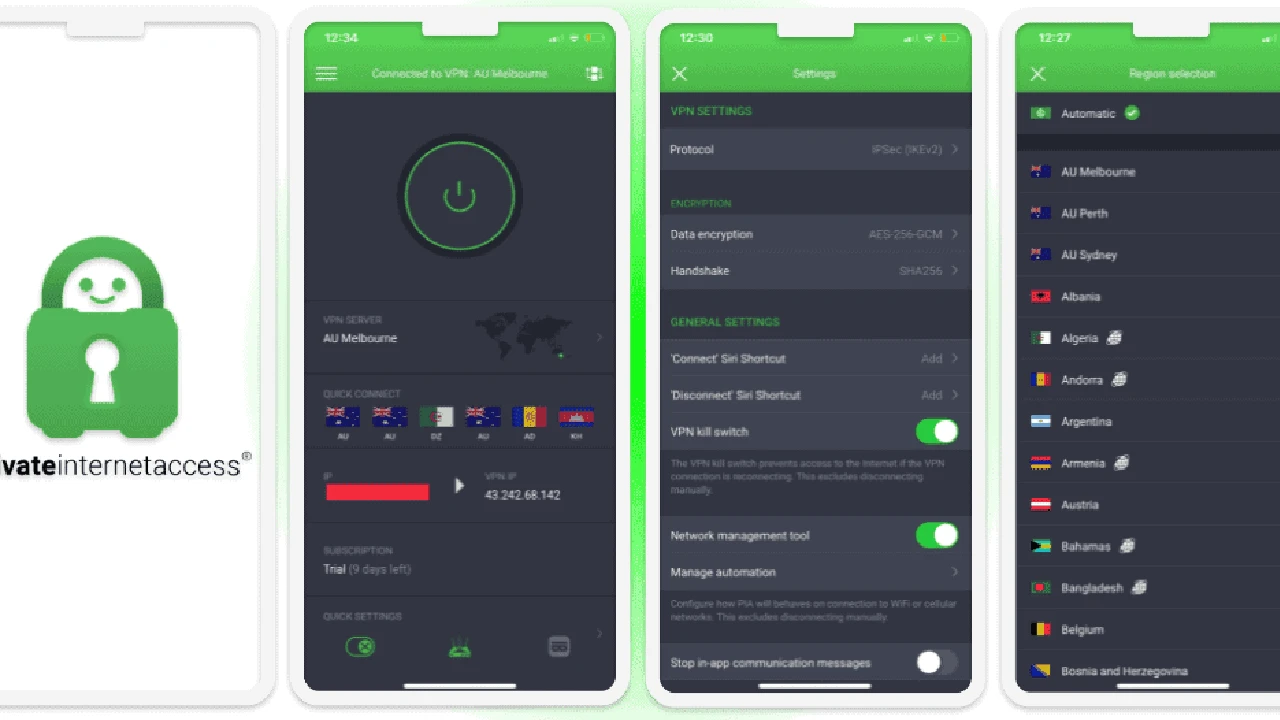
Private Internet Access (PIA) A Balance of Speed Security and Affordability
Private Internet Access (PIA) boasts one of the largest server networks, with servers in 91 countries, including extensive coverage in the USA and Southeast Asia. PIA is highly customizable, allowing users to tweak encryption levels and protocols (OpenVPN, WireGuard) to find the best balance between speed and security. While it might not always win the absolute fastest VPN title, it consistently delivers very good speeds, especially with WireGuard. Its strong focus on privacy and affordability (often around $2.03/month for a 3-year plan) makes it a compelling choice. It also offers unlimited simultaneous connections and a 30-day money-back guarantee. PIA is a solid all-rounder for users who want good speed, strong security, and a great price.
When choosing, consider your primary use case. If raw speed for 4K streaming and competitive gaming is paramount, ExpressVPN or NordVPN might be worth the higher price. If you need to cover many devices on a budget, Surfshark is an excellent choice. For dedicated streaming and gaming servers, CyberGhost shines. And for a balance of speed, security, and affordability with extensive customization, PIA is a strong contender. Always remember to run your own speed tests with your chosen VPN to confirm it meets your specific needs.
Advanced VPN Speed Optimization Techniques Fine-Tuning Your Connection
Beyond the basic steps, there are a few more advanced techniques you can employ to squeeze every last drop of speed out of your VPN connection. These often involve delving a bit deeper into your VPN's settings or understanding your network configuration.
Utilizing Split Tunneling for Selective VPN Usage
Split tunneling is a fantastic feature offered by many VPNs (including ExpressVPN, NordVPN, and Surfshark) that allows you to choose which applications or websites use the VPN connection and which bypass it. Why is this good for speed? Because if an application doesn't need the VPN's security or geo-unblocking capabilities, routing its traffic directly through your ISP can save bandwidth and reduce the load on your VPN connection. For example, you might route your streaming app through the VPN to access geo-restricted content, but let your online gaming traffic bypass the VPN for lower ping. This ensures that only necessary traffic is encrypted and routed through the VPN, potentially freeing up speed for other activities.
Configuring Custom DNS Servers for Faster Resolution
Your VPN typically uses its own DNS servers, which are often secure and private. However, in some cases, using a different DNS server might offer a slight speed improvement, particularly in terms of website loading times (which is often perceived as overall speed). You can try configuring your device or even your VPN app (if it supports it) to use public DNS servers like Google DNS (8.8.8.8 and 8.8.4.4) or Cloudflare DNS (1.1.1.1 and 1.0.0.1). These are often very fast and reliable. Just be aware that using third-party DNS servers might slightly alter your privacy profile, though Google and Cloudflare are generally trusted.
Adjusting MTU Settings for Optimal Packet Transmission
This is a more technical tweak, but adjusting your Maximum Transmission Unit (MTU) can sometimes improve VPN performance, especially if you're experiencing packet loss or slow speeds. MTU refers to the largest packet size that can be transmitted over a network. If your MTU is too large, packets might get fragmented, leading to retransmissions and slower speeds. If it's too small, you're sending more packets than necessary, which also adds overhead. Most VPNs automatically handle MTU, but if you're comfortable with network settings, you can experiment with slightly lower MTU values (e.g., 1420 or 1400 instead of the typical 1500) to see if it improves stability and speed. This is usually done in your router settings or advanced VPN client settings, and it's best to proceed with caution and research specific instructions for your setup.
Considering Router-Level VPN for Network-Wide Speed Benefits
If you have a compatible router, setting up your VPN directly on the router can offer several advantages, including potential speed benefits. When your VPN is on the router, every device connected to that network (smart TVs, gaming consoles, smart home devices, etc.) is automatically protected by the VPN. This means you don't need to run individual VPN apps on each device, which can sometimes consume device resources and potentially slow things down. A powerful router can handle the encryption and routing more efficiently than some individual devices. However, router VPNs can be more complex to set up and might require a more powerful router to maintain high speeds, as the router itself is doing all the encryption work. Some VPNs like ExpressVPN offer custom firmware for easy router setup.
By exploring these advanced optimization techniques, you can further fine-tune your VPN connection to achieve the best possible balance of speed, security, and convenience for your specific needs. Remember to test after each change to see its impact!

:max_bytes(150000):strip_icc()/277019-baked-pork-chops-with-cream-of-mushroom-soup-DDMFS-beauty-4x3-BG-7505-5762b731cf30447d9cbbbbbf387beafa.jpg)