VPN Speed Optimization Tips for a Faster Online Experience
Beyond choosing a fast VPN, learn tips for optimizing your VPN speed. Configure settings and choose servers for a quicker connection.
Beyond choosing a fast VPN, learn tips for optimizing your VPN speed. Configure settings and choose servers for a quicker connection.
VPN Speed Optimization Tips for a Faster Online Experience
So, you've invested in a VPN, hoping for a faster, more secure, and unrestricted online experience. But sometimes, even with a top-tier VPN, you might notice a dip in speed. Don't worry, it's a common scenario, and often, it's not the VPN's fault entirely. There are numerous factors at play, and thankfully, many of them are within your control. This comprehensive guide will walk you through various VPN speed optimization tips, helping you squeeze every last drop of performance out of your connection. We'll cover everything from basic settings adjustments to advanced configurations, server selection strategies, and even some hardware considerations. Our goal is to help you achieve a quicker, smoother, and more enjoyable online experience, whether you're streaming 4K content, engaging in competitive online gaming, or simply browsing the web.
Understanding VPN Speed Factors What Slows Down Your Connection
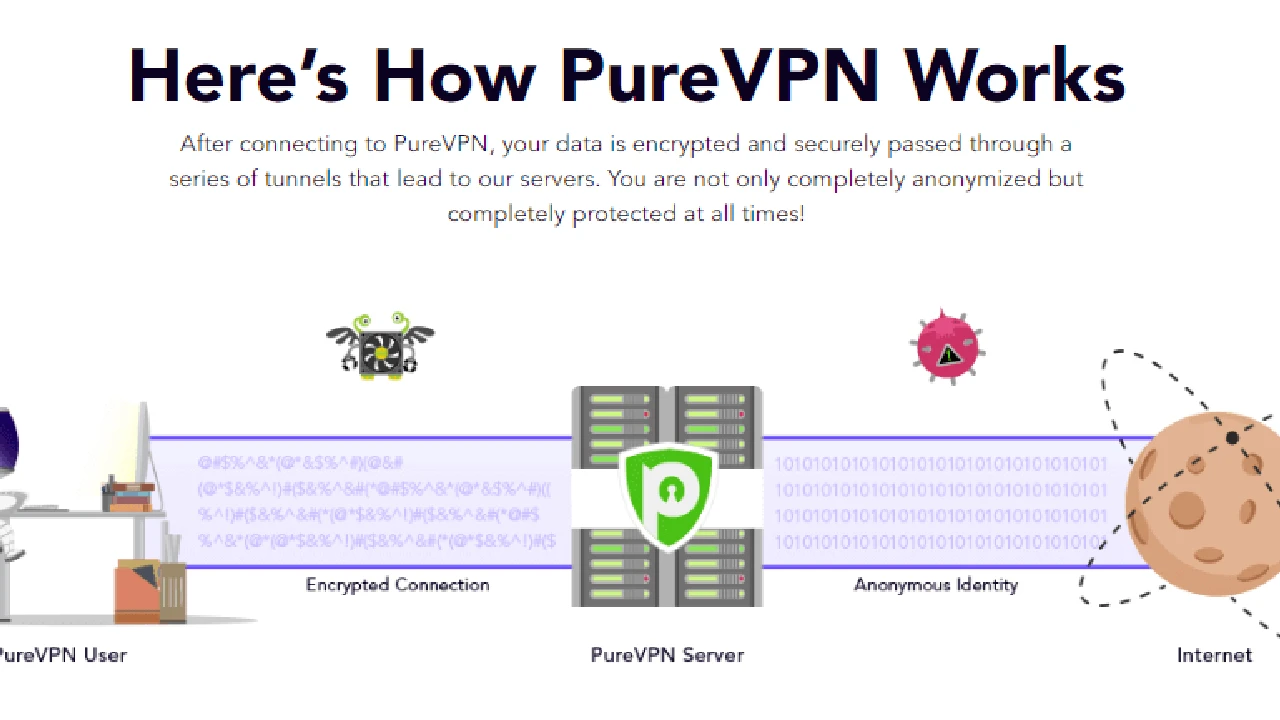
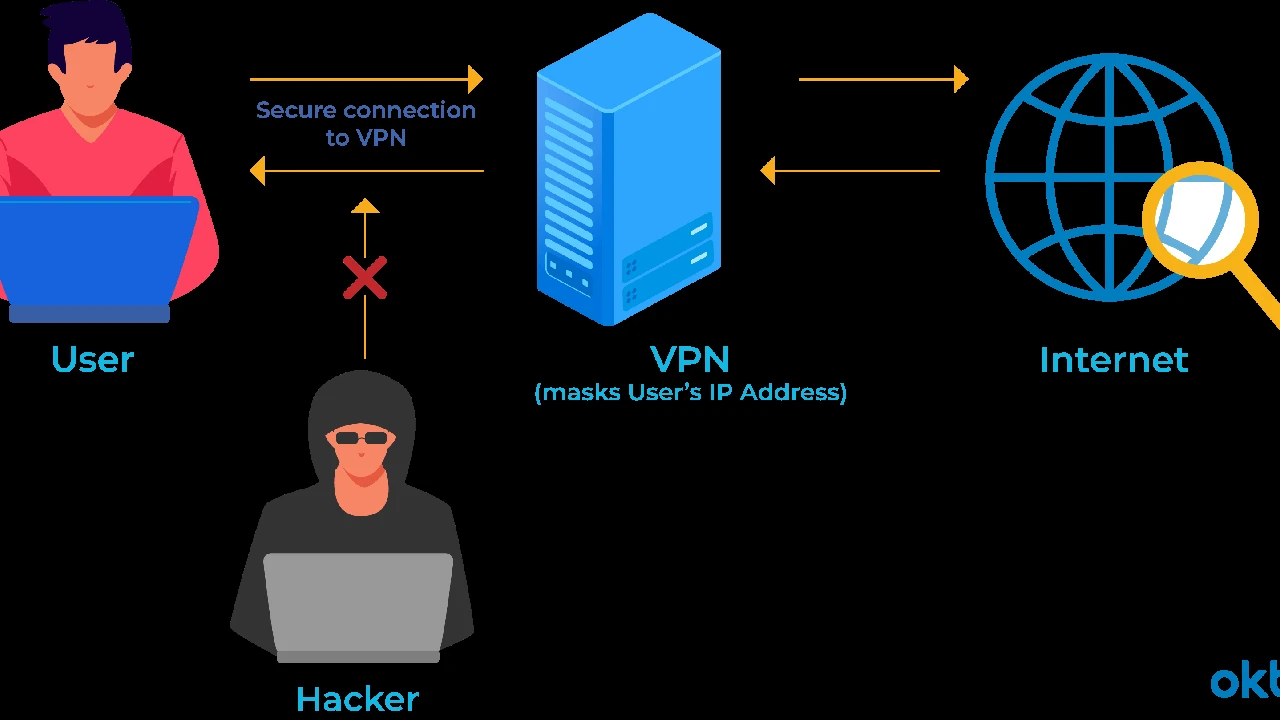
Before we dive into optimization, it's crucial to understand why your VPN might be slowing down your internet in the first place. A VPN, by its very nature, adds a few extra steps to your internet traffic's journey. Your data travels from your device to the VPN server, gets encrypted, then travels to its destination, and finally, the response takes the same encrypted route back to you. Each of these steps can introduce latency and reduce bandwidth. Key factors include:
- Encryption Overhead: The process of encrypting and decrypting your data takes computational power and time. Stronger encryption (like AES-256) offers better security but can be slightly slower than weaker encryption.
- Server Distance: The further your data has to travel to and from the VPN server, the higher the latency (ping) will be. This is a fundamental law of physics.
- Server Load: If a VPN server is overloaded with too many users, its performance will degrade, leading to slower speeds for everyone connected to it.
- VPN Protocol: Different VPN protocols (OpenVPN, WireGuard, IKEv2, L2TP/IPsec, PPTP) have varying levels of efficiency and speed. Some are faster than others.
- Your Internet Service Provider (ISP): Your base internet speed is the ceiling. A VPN cannot make your internet faster than what your ISP provides. Sometimes, ISPs might even throttle VPN traffic, though this is less common with reputable VPNs.
- Local Network Conditions: Your Wi-Fi signal strength, router quality, and other devices on your network can also impact your overall speed.
- Device Performance: Older or less powerful devices might struggle with the encryption/decryption process, especially with strong encryption.
Choosing the Right VPN Provider for Optimal Speed Performance
While this article focuses on optimizing your existing VPN, it's worth noting that the foundation of a fast VPN experience starts with choosing a high-quality provider. Some VPNs are simply built for speed, with optimized server networks, efficient protocols, and robust infrastructure. Here are a few top recommendations known for their speed:
ExpressVPN A Leader in Speed and Reliability
Overview: ExpressVPN consistently ranks as one of the fastest VPNs on the market. They achieve this through their proprietary Lightway protocol, a vast network of high-speed servers, and excellent infrastructure. They are a premium service, and their pricing reflects that, but for users prioritizing speed and reliability, it's often worth the investment.
Key Features for Speed:
- Lightway Protocol: Designed from the ground up for speed and security, Lightway is significantly faster and more efficient than OpenVPN.
- Vast Server Network: Thousands of servers in 105 countries, ensuring you can always find a nearby, uncongested server.
- Server Optimization: ExpressVPN actively monitors and optimizes its servers for performance.
- No Throttling: They explicitly state they do not throttle bandwidth.
Use Cases: Ideal for 4K streaming, competitive online gaming, large file downloads, and users who demand the absolute best in speed and performance.
Pricing: Typically starts around $6.67/month for a 12-month plan, with a 30-day money-back guarantee.
NordVPN The Balance of Speed and Features
Overview: NordVPN is another industry giant known for its strong security features and impressive speeds, largely thanks to its NordLynx protocol (built around WireGuard). They offer a massive server network and a good balance between price and performance.
Key Features for Speed:
- NordLynx Protocol: A custom implementation of WireGuard, offering excellent speeds and strong security.
- Huge Server Network: Over 6000 servers in 60 countries, providing plenty of options for optimal connections.
- Specialty Servers: Offers P2P optimized servers, obfuscated servers, and Double VPN servers, though the latter two might slightly reduce speed for enhanced security.
Use Cases: Great for streaming, general browsing, secure P2P sharing, and users looking for a feature-rich VPN with good speed at a competitive price.
Pricing: Often available for around $3.99/month for a 2-year plan, also with a 30-day money-back guarantee.
Surfshark Unlimited Devices, Great Speed
Overview: Surfshark stands out for its unlimited simultaneous connections and competitive pricing, without sacrificing much on speed. They also utilize the WireGuard protocol for fast connections.
Key Features for Speed:
- WireGuard Protocol: Provides fast and efficient connections.
- Large Server Network: Over 3200 servers in 100 countries.
- NoBorders Mode: Helps bypass restrictions in censored regions, which can sometimes improve connection stability and speed in challenging environments.
Use Cases: Excellent for families or individuals with many devices, budget-conscious users who still want good speed, and general streaming/browsing.
Pricing: Can be as low as $2.49/month for a 2-year plan, with a 30-day money-back guarantee.
Optimizing VPN Settings and Configuration for Faster Connections
Once you have a good VPN provider, the next step is to fine-tune its settings. Many VPN apps offer various options that can significantly impact your speed.
Selecting the Fastest VPN Protocol Understanding WireGuard OpenVPN IKEv2
The VPN protocol you choose is one of the most critical factors affecting speed. Here's a breakdown:
- WireGuard (or custom implementations like NordLynx/Lightway): This is generally the fastest and most modern protocol. It's lightweight, efficient, and offers excellent security. If your VPN offers it, this should be your first choice for speed.
- IKEv2/IPsec: Often a good balance between speed and security, especially on mobile devices where it handles network changes well. It's usually faster than OpenVPN.
- OpenVPN (UDP vs TCP): OpenVPN is highly secure and versatile. For speed, always choose OpenVPN (UDP). UDP is connectionless and faster, ideal for streaming and gaming. OpenVPN (TCP) is more reliable for unstable networks but introduces more overhead, making it slower.
- L2TP/IPsec: Generally slower than IKEv2 and OpenVPN, and while secure, it's not usually recommended for speed.
- PPTP: Very fast but highly insecure. Avoid at all costs unless you have absolutely no other option and security is not a concern (which it almost always should be).
Action: Go into your VPN app's settings and experiment with different protocols. Start with WireGuard (or its custom variants), then try IKEv2, and finally OpenVPN (UDP).
Choosing the Optimal VPN Server Location and Load
Server selection is paramount for speed. It's not just about picking a server in the right country; it's about picking the right server in that country.
- Proximity Matters: Always try to connect to a VPN server that is geographically closest to your physical location. Less distance means less latency.
- Check Server Load: Many VPN apps display the current load or ping for their servers. Choose servers with lower loads (fewer users) and lower ping times. A server that's further away but has a very low load might sometimes be faster than a closer, overloaded server.
- Experiment: Don't just stick to one server. If you're experiencing slow speeds, try connecting to a few different servers in the same city or country. VPN providers often have multiple servers in a single location.
- Dedicated Servers: Some VPNs offer specialized servers for streaming or P2P. These are often optimized for specific tasks and can provide better performance for those activities.
Action: Use your VPN app's server list to find the closest, least-loaded server. If your app has a 'Smart Connect' or 'Fastest Server' option, try that first, then manually explore if needed.
Adjusting Encryption Levels and Features for Speed vs Security
While strong encryption is vital for security, it does come with a performance cost. Most reputable VPNs use AES-256 encryption by default, which is considered military-grade and highly secure. Some VPNs might offer options for AES-128 or other ciphers.
- Encryption Strength: If your VPN allows it, switching from AES-256 to AES-128 might offer a slight speed boost, but it's generally not recommended unless you're in a very low-risk scenario and absolutely need every bit of speed. For most users, the security trade-off isn't worth the minimal speed gain.
- Extra Features: Features like Double VPN (multi-hop), obfuscated servers, or Tor over VPN provide enhanced security and anonymity but will almost certainly reduce your speed significantly. Only use these features when your threat model specifically requires them.
- Ad Blockers/Malware Protection: Some VPNs include built-in ad blockers or malware protection. While beneficial, these can sometimes add a tiny bit of processing overhead. If speed is paramount, you might consider disabling them and using browser-based ad blockers instead.
Action: Stick with the default strong encryption (AES-256) unless you have a very specific reason not to. Disable any advanced security features you don't strictly need for your current activity.
Optimizing Your Local Network and Device for VPN Speed
Your VPN's performance isn't just about the VPN itself; your local network and device play a significant role. Here's how to optimize them:
Using a Wired Connection Ethernet vs Wi-Fi
Action: Whenever possible, use an Ethernet cable to connect your device directly to your router. Wired connections are inherently more stable and faster than Wi-Fi, which can be susceptible to interference, signal degradation, and congestion.
Improving Your Wi-Fi Signal and Router Performance
If a wired connection isn't feasible, optimize your Wi-Fi:
- Router Placement: Position your router centrally and away from obstructions (walls, large appliances).
- Router Firmware: Keep your router's firmware updated. Manufacturers often release updates that improve performance and security.
- Frequency Bands: If your router supports both 2.4GHz and 5GHz bands, use 5GHz for devices that are closer to the router and require higher speeds (like streaming devices or gaming consoles). 2.4GHz has a longer range but is slower and more prone to interference.
- Channel Optimization: Use a Wi-Fi analyzer app to find the least congested Wi-Fi channel in your area and configure your router to use it.
- Upgrade Your Router: An old or low-quality router can be a bottleneck. Consider upgrading to a modern Wi-Fi 6 (802.11ax) or Wi-Fi 5 (802.11ac) router, especially if you have a fast internet connection.
Updating Your Network Drivers and Operating System
Outdated network drivers or an old operating system can sometimes cause performance issues.
Action: Regularly update your operating system (Windows, macOS, Android, iOS) and ensure your network adapter drivers are up to date. This can resolve bugs and improve compatibility and performance.
Closing Unnecessary Applications and Background Processes
Other applications running on your device can consume bandwidth and CPU resources, impacting your VPN's performance.
Action: Close any applications or background processes that are not essential, especially those that use a lot of internet bandwidth (e.g., cloud syncing services, other streaming apps, large downloads).
Advanced VPN Speed Optimization Techniques for Power Users
For those who want to go a step further, here are some more advanced tips:
Changing Your DNS Servers for Faster Resolution
While your VPN typically handles DNS requests, sometimes using a faster, public DNS server can slightly improve overall browsing speed, especially if your VPN's default DNS is slow or overloaded.
Action: In your device's network settings, you can manually change your DNS servers to public ones like Google DNS (8.8.8.8, 8.8.4.4) or Cloudflare DNS (1.1.1.1, 1.0.0.1). Some VPNs also allow you to configure custom DNS within their app. Be aware that using third-party DNS might bypass your VPN's DNS protection, so ensure you trust the DNS provider.
Split Tunneling for Selective VPN Usage
Split tunneling allows you to choose which applications or websites use the VPN connection and which access the internet directly. This can significantly improve speed for non-VPN traffic.
Action: If your VPN offers split tunneling (e.g., ExpressVPN, NordVPN, Surfshark all have it), enable it. Route only the traffic that needs VPN protection (e.g., torrent client, specific browser) through the VPN, and let other traffic (e.g., online games, local network access) bypass it. This frees up VPN bandwidth and reduces overhead.
Considering a Faster Internet Plan from Your ISP
As mentioned, a VPN cannot exceed your base internet speed. If you've tried all other optimization tips and your speeds are still unsatisfactory, your ISP might be the bottleneck.
Action: Check your internet plan. If you're on a very basic plan, consider upgrading to a faster one. This is often the most effective way to see a significant overall speed improvement, both with and without a VPN.
Disabling Your Firewall or Antivirus Temporarily for Testing
Sometimes, overly aggressive firewall or antivirus software can interfere with VPN connections, leading to slower speeds or connection drops.
Action: Temporarily disable your firewall or antivirus (just for a few minutes, and only if you're confident in your online activity) to see if it impacts your VPN speed. If it does, you might need to add an exception for your VPN application in your security software settings.
Troubleshooting Common VPN Speed Issues
Even with all these tips, you might still encounter issues. Here's a quick troubleshooting checklist:
- Restart Everything: A classic IT solution, but often effective. Restart your router, modem, and device.
- Reinstall VPN App: A fresh installation can sometimes resolve corrupted files or configuration issues.
- Contact VPN Support: If you've tried everything and still have slow speeds, reach out to your VPN provider's customer support. They can often provide specific advice or help diagnose server-side issues.
- Check for ISP Throttling: While rare with good VPNs, if your speeds are consistently slow even after optimization, you can try running a speed test without the VPN, then with the VPN connected to a nearby server. If the difference is drastic and inconsistent with typical VPN overhead, your ISP might be throttling.
By systematically working through these VPN speed optimization tips, you should be able to significantly improve your online experience. Remember, a little experimentation with settings and server choices can go a long way in achieving a faster, more efficient, and ultimately more satisfying VPN connection.
:max_bytes(150000):strip_icc()/277019-baked-pork-chops-with-cream-of-mushroom-soup-DDMFS-beauty-4x3-BG-7505-5762b731cf30447d9cbbbbbf387beafa.jpg)